

QR Code Design Best Practices
Design rules for QR codes that scan reliably, look professional, and earn the click.
A QR code that does not scan is worse than no QR code at all. It promises a connection and fails to deliver. The design choices that produce reliable, professional-looking QR codes are not complicated, but they are easy to get wrong. The practices below cover what to do so your codes scan every time, look intentional, and convince people to point their phone at them.

Would you like to check full analytics and reporting on your short link?
Would you like to check full analytics and reporting on your short link?
Would you like to check full analytics and reporting on your short link?
Would you like to check full analytics and reporting on your short link?
At a Glance
Keep strong contrast between the code and its background. Print the code large enough for its scanning distance. Use a high error correction level for anything that may get damaged. Test on a phone before printing. Add a clear instruction next to the code. The rest is polish.
The Practices
Practice 1. Maintain Strong Contrast
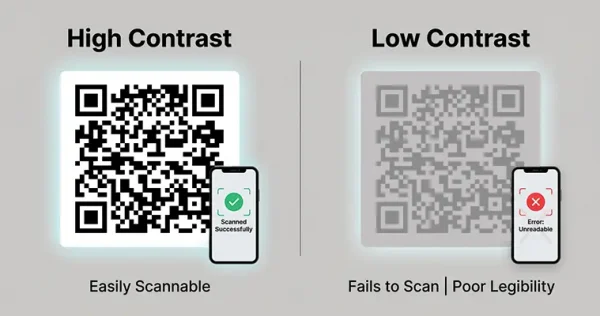
Dark code on a light background scans most reliably. Black on white is the safest choice. Brand colors work as long as the contrast is strong; a navy code on a cream background usually scans cleanly, while a yellow code on a white background often does not. Test any color combination before committing to it.
Practice 2. Print the Code Large Enough
The right size depends on scanning distance. A QR code on a business card is read from inches away and can be small (around 1 inch square). A code on a poster, scanned from across a room, needs to be much larger (4 inches or more). A code on a billboard meant to be scanned from a passing car needs to be larger still. As a rule of thumb, the code should be roughly one-tenth the scanning distance.
Practice 3. Pick the Right Error Correction Level
Error correction is a QR code feature that lets the code still scan even when part of it is damaged or obscured. Higher levels are more forgiving but make the code denser. For clean digital use, the lowest level (around 7%) is fine. For print materials, use 15% or 25%. For anything outdoors, on packaging, or where the code may get worn or wet, use the highest level (30%). A logo in the center also consumes some of the code, so a higher error correction level compensates.
Practice 4. Test on Multiple Phones Before Printing
Open your phone’s camera and scan the QR code. Then ask someone with a different phone (different brand, different age) to do the same. Test in normal lighting and in dim lighting. If a code scans inconsistently in testing, it will scan inconsistently in the wild. Catch this before you print 10,000 flyers.
Practice 5. Add a Clear Instruction Near the Code
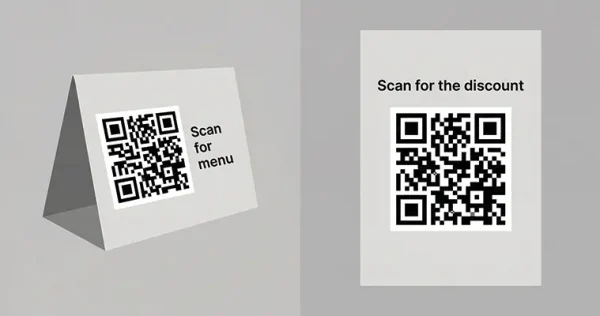
Practice 6. Use a Logo, But Use It Carefully
A logo in the center of a QR code reinforces the brand and signals trust. It also consumes a part of the code’s data area, which the error correction has to compensate for. Keep the logo small (no more than 15-20 percent of the code’s width), use a high error correction level (25% or 30%), and test the result before printing. A code with a logo that does not scan is the worst of both worlds.
Practice 7. Choose the Right File Format
Use SVG for print materials. SVG is a vector format that stays sharp at any size, from a business card to a billboard. Use PNG for screen use, like a website, an email, or a slide deck. For both, download at the highest resolution your tool offers. Never use a low-resolution image for print; the code becomes blurry and fails to scan.
Practice 8. Use a Dynamic QR Code Anywhere the Destination Might Change
A static QR code encodes the destination URL directly, which means the code becomes useless the moment the URL changes. A dynamic QR code encodes a short link, whose destination can be repointed. Anywhere you cannot guarantee the destination will be permanent (a menu, a campaign page, a seasonal offer), use a dynamic QR code so you can repoint it without reprinting.
Practice 9. Place the Code at Eye Level Where Possible
Physical placement matters. A QR code on a counter is easier to scan than one on the floor. A code on a poster at eye level is easier than one at the ceiling. For outdoor displays, consider the angle: a code parallel to the viewer scans cleaner than one at a steep angle. Where the viewer is going to stand affects whether they bother to scan.
Practice 10. Give Your Codes Quiet Space
Every QR code needs a small clear margin around it, called the quiet zone. Without it, surrounding text or images can confuse the scanner. The quiet zone should be at least four times the width of one of the code’s smallest squares. Most QR code generators include this margin automatically; the practice is to not crop it out when placing the code in a design.
Applying These Practices
A QR code that scans every time, looks professional, and earns the click is not the result of a clever trick. It is the cumulative effect of these practices applied carefully. Skip the testing step and a small percentage of your codes fail. Skip the quiet zone and some scanners get confused. Skip the contrast check and your code looks great in proof but fails on print.
ShortifyMe’s QR code generator handles the technical side: SVG and high-resolution PNG downloads, four error correction levels, six pattern styles, and a live preview. The design decisions (contrast, size, instruction, placement) are up to the designer. Use the practices above as the checklist.
Try ShortifyMe Free
Put this into practice. Create a free account in 30 seconds. No credit card required. No ads on any link, ever.