QR codes are everywhere now. You see them on restaurant menus, product packaging, payment screens, flyers, and even billboards. Knowing how to scan a QR code quickly has become part of everyday life. The good news is that scanning is faster and easier than ever, thanks to built-in camera tools on modern devices.
The days of needing a separate app just to scan are largely behind us. Today, most phones, tablets, and even computers can handle QR codes with tools you already have. This guide walks through every common scanning scenario, from physical codes to screenshots and desktop screens. You will also learn why the quality of the code itself matters and how using the right QR code generator can make scanning easier for everyone.
Key Takeaways:
- No app needed: Most modern smartphones can scan a QR code using the built-in camera.
- Screenshots are scannable: You can scan a QR code from picture files or screenshots using native tools.
- Desktop options exist: A QR code reader for PC or browser-based tools make scanning possible on computers.
- Quality matters: A reliable QR code generator creates codes that scan quickly and consistently.
- Safety first: Always preview links before opening them, especially in public spaces.
What Exactly Is a QR Code?

A QR code, short for Quick Response code, is a two-dimensional barcode designed to store information in a compact, scannable format. When you scan a QR code, your device reads the pattern and instantly translates it into usable information.
Most QR codes link to a website, but they can also store text, contact details, payment instructions, or app download links. The technology was first developed in Japan in 1994 by Masahiro Hara and his team at Denso Wave for tracking automotive parts, but its speed and reliability led to widespread adoption across many industries. Today, QR codes play a central role in how people move between physical spaces and digital content.
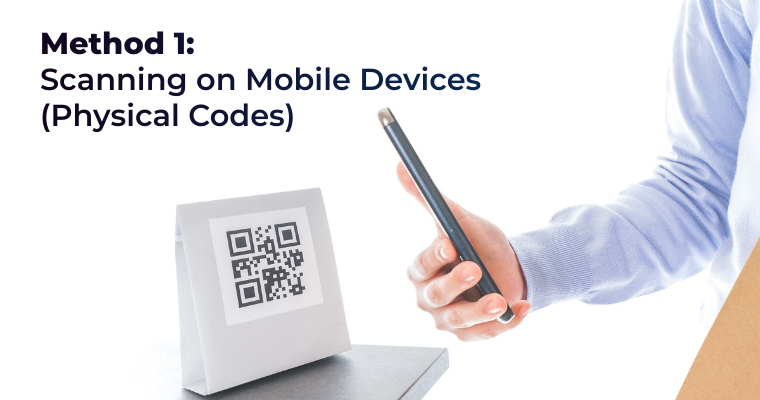
Method 1: Scanning on Mobile Devices (Physical Codes)
How to Scan a QR Code on iPhone Devices
If you are wondering how to scan a QR code on iPhone devices, the process is simple and does not require an extra app.
- Open the Camera app.
- Point the camera at the QR code.
- Hold your phone steady until a notification appears.
- Tap the notification to open the link.
For faster access, iPhones also include a dedicated Code Scanner. You can add it to your Control Center in Settings, then swipe down and tap the scanner whenever you need to scan a QR code.
How to Scan a QR Code on Android Devices
Many people ask how to scan a QR code on Android devices, and the steps are just as straightforward.
- Open your phone’s camera app.
- Point it at the QR code.
- Tap the on-screen prompt when it appears.
If your camera does not recognize the code right away, Google Lens is a reliable alternative. Google Lens is often built into the camera app or accessible through Google app. It works well for both physical codes and images, making it one of the most flexible options to scan a QR code on Android devices.
How to Scan on Older or Alternative Operating Systems
Not every device has a built-in scanner. Older phones and alternative systems still support QR scanning with the right tools.
- BlackBerry 10: The Smart Tags app can scan QR codes. If unavailable, third-party readers can be downloaded from supporting app stores.
- KaiOS: A lightweight QR reader app is available through the KaiStore.
- Other systems: Devices like older Windows Phones require a third-party QR code reader app.
When choosing an app, look for one that previews links and checks for suspicious URLs, such as Trend Micro or Kaspersky. This extra step helps protect you when you scan a QR code in public places.
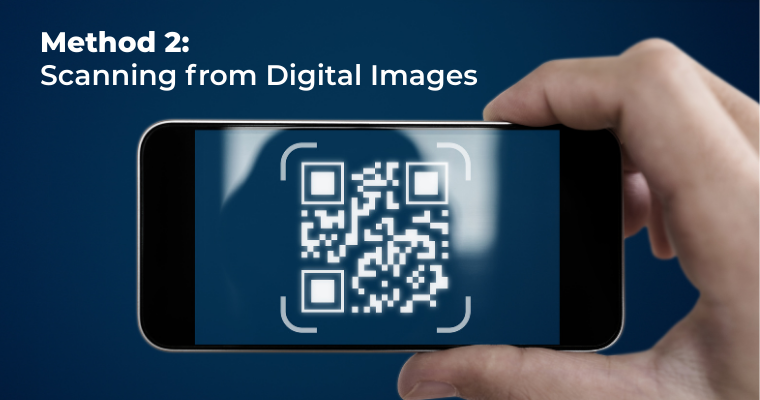
Method 2: Scanning from Digital Images
How to Scan a QR Code from a Picture or a Screenshot
You do not need a second device to scan a QR code from picture files.
- On iPhone: Open the image in Photos, tap the Live Text icon, then tap the QR code.
- On Android: Open the image in Google Photos or Gallery, tap the Google Lens icon, and select the link.
These tools also work when you need to scan a QR code on your screen, such as a code sent through email or displayed in an app.
How to Scan a QR Code on a Computer
If you need to scan a QR code on a computer, there are two common scenarios:
- Scanning a physical code: Use your webcam with a browser-based scanner or a built-in camera app that supports barcode reading.
- Scanning a code on your screen: Right-click the image in Chrome and choose the option to search with Google Lens or upload the image to an online QR decoder. These tools act as a simple QR code reader for PC and work on both Windows and Mac systems.
| Feature | Native Camera (iOS/Android) | Google Lens / Live Text (From Photo) | Third-Party App | Online Decoder (PC/Mac) |
|---|---|---|---|---|
| Use Case | Physical codes, real-time scanning. | Codes saved as images or screenshots. | Older devices, advanced features (history, security scan). | Codes displayed on the computer screen. |
| Setup Required | None (Built-in since 2017). | None (Built-in feature). | App download and installation. | Open a website in your browser. |
| Speed/Convenience | Instant. Fastest method for physical codes. | Very fast, few taps within the gallery. | Slowest startup time, but robust scanning. | Depends on internet speed and method (upload/webcam). |
| Security Score | High (Uses OS-level protection). | High (Integrated into secure OS functions). | Varies (Choose a reputable app). | Medium (Depends on the trust of the website). |
| Key Advantage | Zero-friction accessibility. | Solves the “screenshot” problem elegantly. | Offers history and dedicated security checks. | Scans codes without a mobile phone. |
Troubleshooting and Best Practices

Sometimes a QR code does not scan right away. Common issues include poor lighting, low contrast, or blurry images. To improve results, try:
- Increasing lighting and avoiding glare.
- Moving your device closer or farther away until the code is in focus.
- Checking camera settings to confirm QR scanning is enabled.
Before opening any link, take a moment to preview the URL. When you scan a QR code in public spaces, this habit helps ensure the destination is safe and trustworthy.
Beyond the Scan: Creating Better QR Codes with ShortifyMe
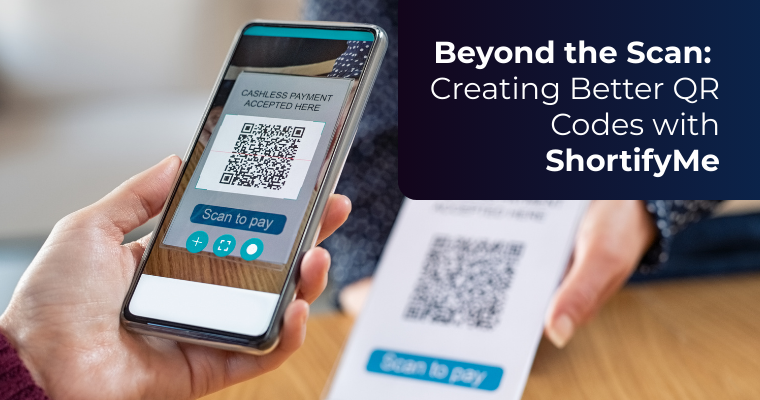
Now that you know how easy it is to scan a QR code on any device, the next step is learning how to create a QR code that works just as smoothly for your audience.
A Reliable QR Code Generator
ShortifyMe is a powerful QR code generator designed to help individuals and businesses create professional, high-quality codes in minutes. You can generate QR codes for websites, campaigns, documents, and more, all from one platform.
Custom Design and Scan Quality
With ShortifyMe, you can customize your QR codes like its color, add logos, and change pattern and corner styles without sacrificing scan reliability. High contrast and clean design make it easier for users to scan a QR code quickly, whether it appears on a poster, package, or digital screen.
Data-Driven QR Code Marketing
ShoritfyMe includes built-in analytics that show when, where, and how often your codes are scanned. These insights help you measure engagement and refine your QR code marketing strategy using real data rather than guesswork.
Dynamic QR Codes for Long-Term Use
Dynamic QR codes let you update the destination link even after the code is printed. This flexibility supports long-term campaigns, reduces reprinting costs, and makes QR code marketing more adaptable as needs change.
If you are ready to get started, ShortifyMe makes it easy to create a QR code that looks professional and performs reliably.
Scanning Made Simple, Connection Made Stronger
Scanning a QR code no longer requires special tools or technical know-how. Whether you use a phone, tablet, or computer, the process is fast, intuitive, and accessible. From menus to marketing campaigns, QR codes continue to shape how people interact with information.
For businesses and creators, the experience starts with a well-made QR code. Using ShortifyMe’s QR code generator ensures your codes are easy to scan, easy to manage, and built to support effective QR code marketing over time.