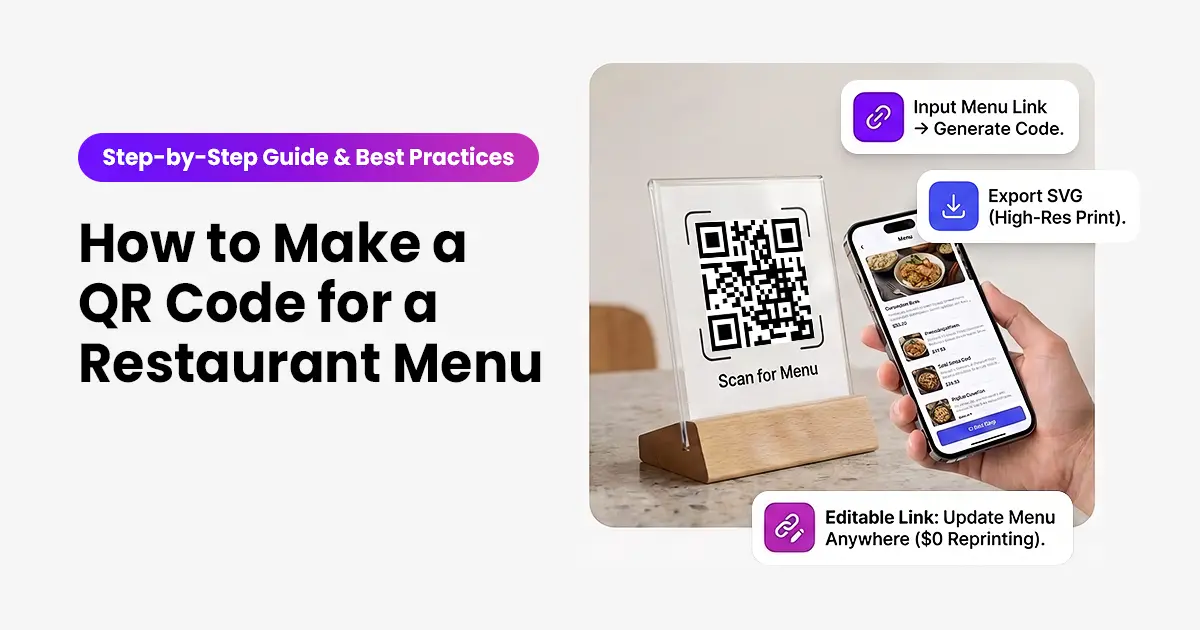
A QR code menu saves the cost of reprinting, works on every phone without an app, and can be updated whenever your menu changes. This guide covers how to make the QR code, how to design it for menu use, and how to update the destination later without having to reprint your table tents or window decals.
What You Need Before You Start
Two Things:
A URL for your menu. This could be your restaurant’s website menu page, a Google Doc or PDF of your menu, a link to a menu app like Toast or Square, or any other web address where the menu lives.
A free URL shortener with QR code generation, like ShortifyMe. You do not need to create an account to make a basic QR code, but a free account gives you scan tracking and lets you change the menu destination later without reprinting.
Step by Step
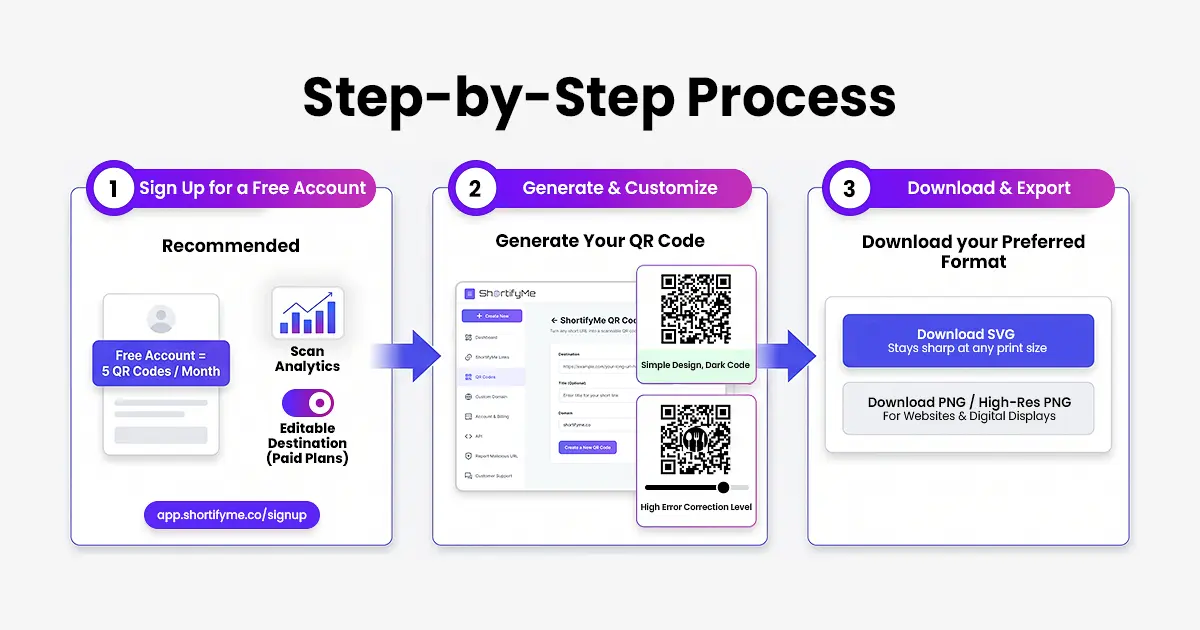
Step 1. Sign Up for a Free ShortifyMe Account (Recommended)
You can skip this step and make a QR code as a guest, but a free account gives you two useful things for a restaurant menu:
- Scan tracking: See how many people scan the QR code each day, week, or month. Useful for knowing if the code placement is working.
- Editable destination on paid plans: If you change menus, add a happy hour page, or move your menu to a new platform, you can update the QR code destination without reprinting. This is worth the paid plan cost for most restaurants alone.
Sign up at shortifyme.com/signup. Free accounts include 5 QR codes per month, more than enough for one menu plus any special promotions.
Step 2. Generate Your QR Code
- Go to your ShortifyMe dashboard and click QR Codes in the left navigation. Click Create QR Code.
- Enter the URL of your menu. Optionally give it a title (like “Table Menu QR”) to recognize it later.
- Click Create QR Code. The customization screen opens.
- On the customization screen, keep the design simple. Use a dark code on a light background for maximum scannability. Skip fancy patterns for menu QR codes since you want scans to work every time, even in dim restaurant lighting. If you want to add your logo to the center, use a high error correction level (25% or 30%) so the code still scans despite the logo coverage.
- Save the QR code. It appears in your QR Codes list, ready to download.
Step 3. Download the QR Code for Print
On the QR Codes list, download your code as SVG for print (SVG stays sharp at any size). Use PNG or the higher-resolution PNG for on-screen use like your restaurant website or a digital display.
Where to Place the QR Code
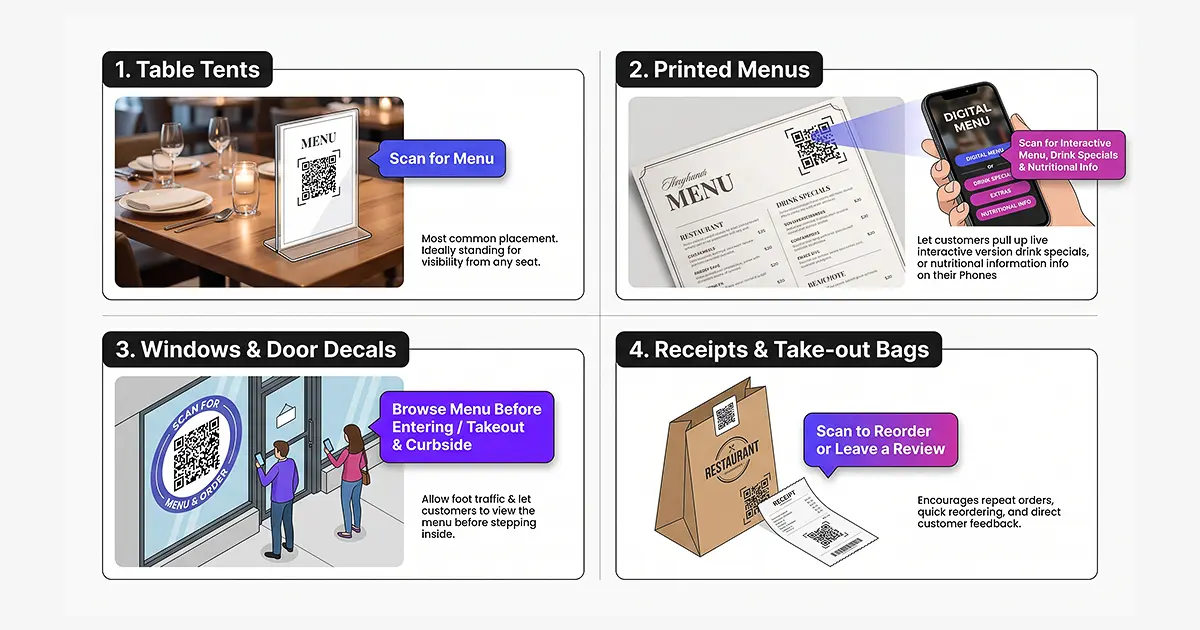
- Table tents: The most common placement. Put one on every table, ideally standing so it is visible from either seat. Include a clear instruction like “Scan for menu” so customers know what to do.
- Menus themselves: Ironic but useful. A QR code on a printed menu lets customers pull up an interactive version, drink specials, or nutritional information on their phone.
- Windows and door decals: A QR code in your window lets people scan and browse your menu before entering, especially useful for takeout or curbside orders.
- Receipts and take-out bags: Encourages return visits and gives customers a way to reorder or leave a review.
Tips for a Restaurant Menu QR Code
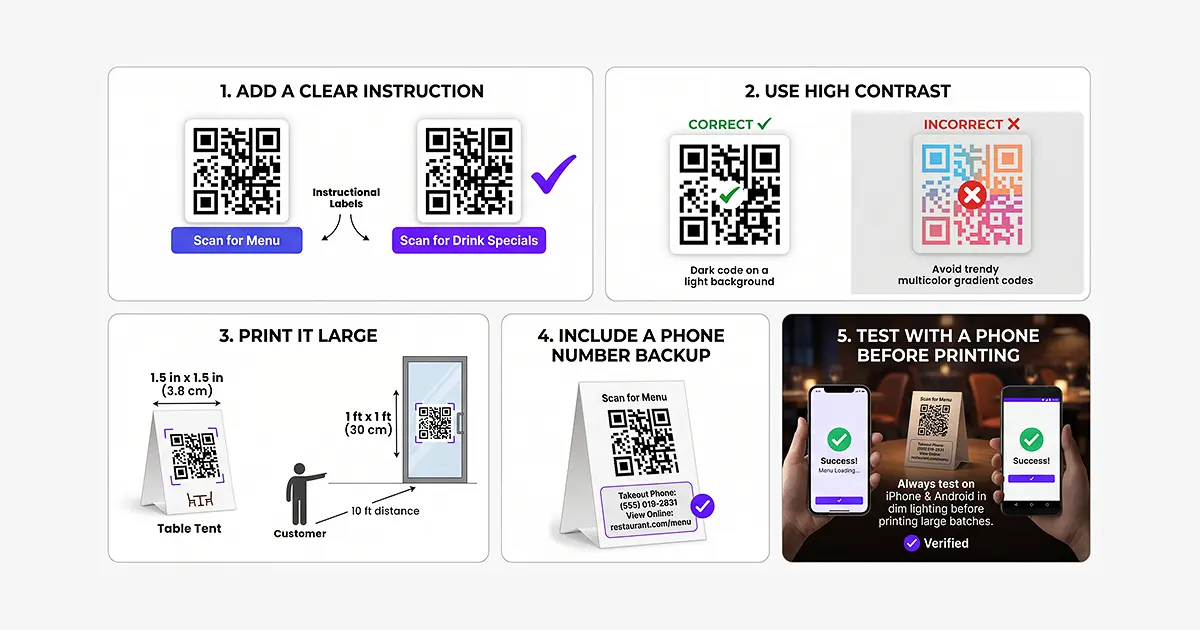
- Add a clear instruction: “Scan for menu” gets more scans than a code with no label. “Scan for drink specials” gets even more when the label promises something specific.
- Use high contrast: Dark code on a light background scans best. Skip the trendy multicolor gradient codes for restaurant use; reliability matters more than aesthetics.
- Print it large: On a table tent, at least 1.5 inches square. On a window, larger. The rule of thumb is roughly one-tenth the scanning distance.
- Include a phone number backup: Some customers cannot or will not scan QR codes. A phone number for takeout or a URL as text keeps them from leaving.
- Test with a phone before printing: Scan your final code with an iPhone and an Android phone. Test in dim lighting. If it fails in testing, redesign.
Why an Editable QR Code Matters for a Restaurant
Menus change. Prices go up. Suppliers change. Items get added or removed for the season. A static QR code that encodes the menu URL directly is fine until the menu URL changes. Then every printed QR code becomes useless and needs to be reprinted.
A dynamic QR code, which encodes a short link that can be repointed on a paid ShortifyMe plan, avoids this. Change the menu URL in your dashboard, and every existing QR code on every table tent, on every window, on every printed menu, automatically leads to the new URL. No reprinting, no cost, no downtime.
(H2) FAQs
Q: Do customers need an app to scan the QR code?
A: No. Modern iPhones and Android phones scan QR codes directly through the camera app. No app installation needed. Older phones may need a QR code reader app.
Q: Can I make the QR code look like our brand?
A: Yes. ShortifyMe QR codes support custom colors, patterns, corner styles, and logo upload. Just prioritize scannability over aesthetics for menu use, since customers need the code to work every time.
Q: How many times can one QR code be scanned?
A: Unlimited. The same QR code can be scanned by thousands of customers over months or years. There is no per-scan cost.
Q: What happens if we change our menu website?
A: On a free ShortifyMe account, you would need to generate a new QR code and replace the printed materials. On a paid plan, you can change the destination URL of an existing QR code without reprinting. This is the single biggest reason for a restaurant to use a paid plan.