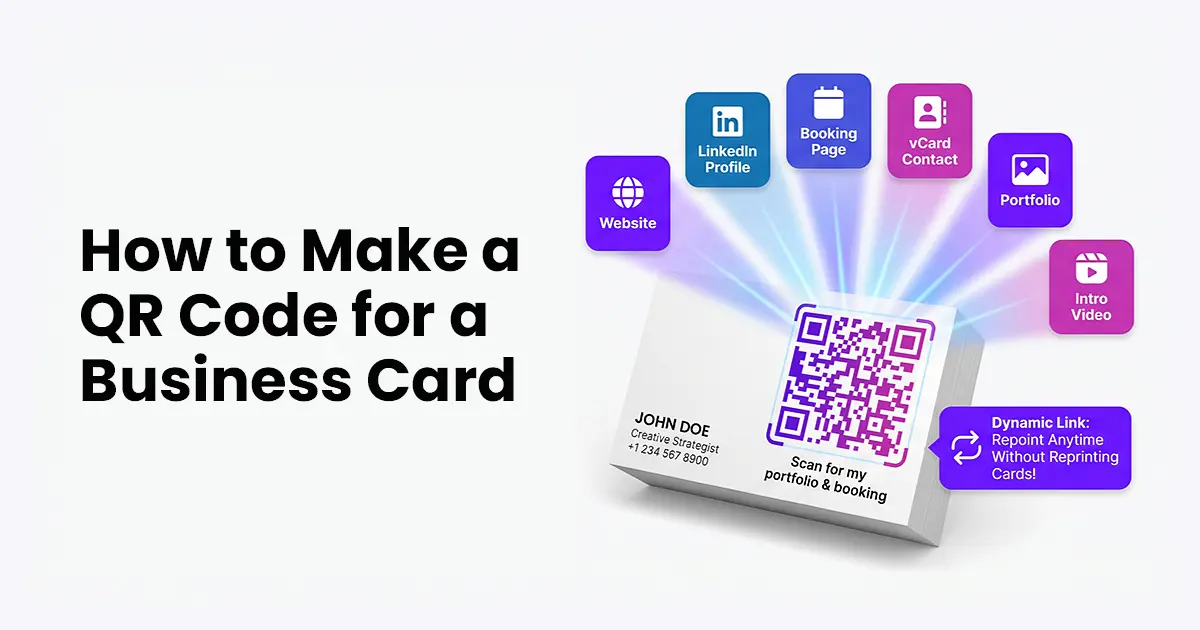
A QR code on a business card turns a piece of paper into a live link to your website, LinkedIn profile, portfolio, or scheduling page. Someone scans, taps once, and is looking at your work. This guide covers what to link to, how to make the QR code, and how to design it so it fits your card without dominating it.
What to Link the QR Code To
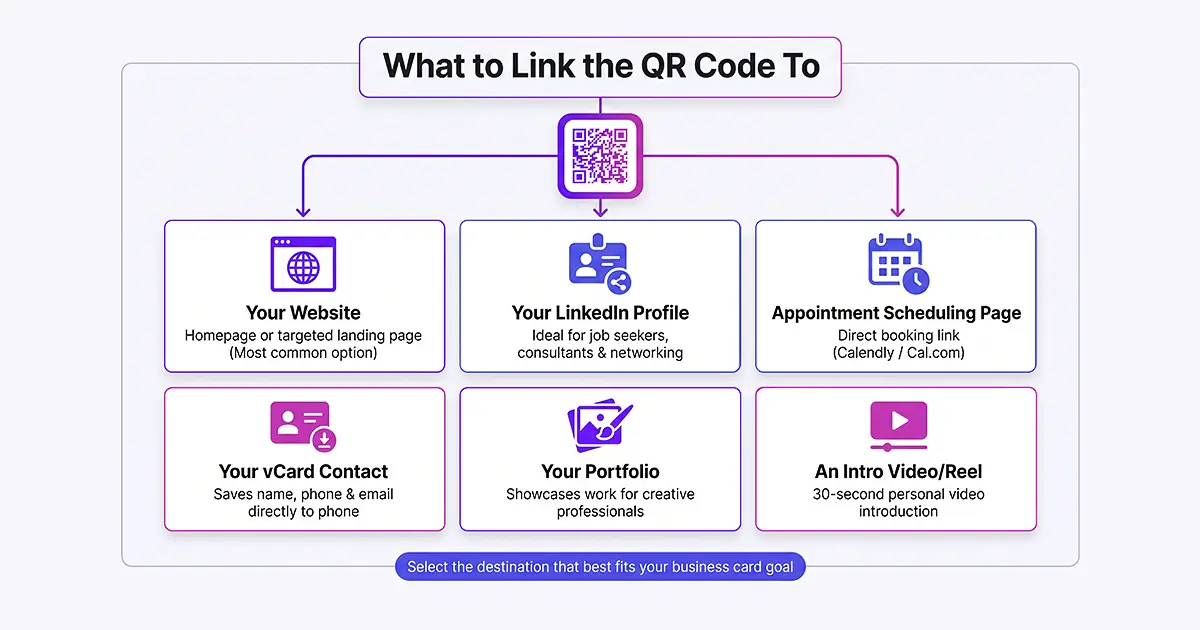
Before you make the QR code, decide what you want it to open. A few options that work well:
- Your Website: The most common choice. Sends the recipient to your homepage or a specific landing page.
- Your LinkedIn profile: Great for job seekers, consultants, and anyone whose primary online presence is on LinkedIn.
- A scheduling page: Calendly, Cal.com, or any booking link. Turns the business card into a way to book time with you directly.
- A vCard (digital contact card): When scanned, this adds your name, phone, email, and other details straight to the recipient’s phone contacts. Requires generating a vCard URL, which some QR code tools handle directly.
- Your portfolio: For designers, developers, writers, photographers, and other creative professionals. Sends the recipient to your best work.
- An intro video or reel: A 30-second video introducing yourself. Good for sales, consulting, or personal branding contexts.
Step by Step
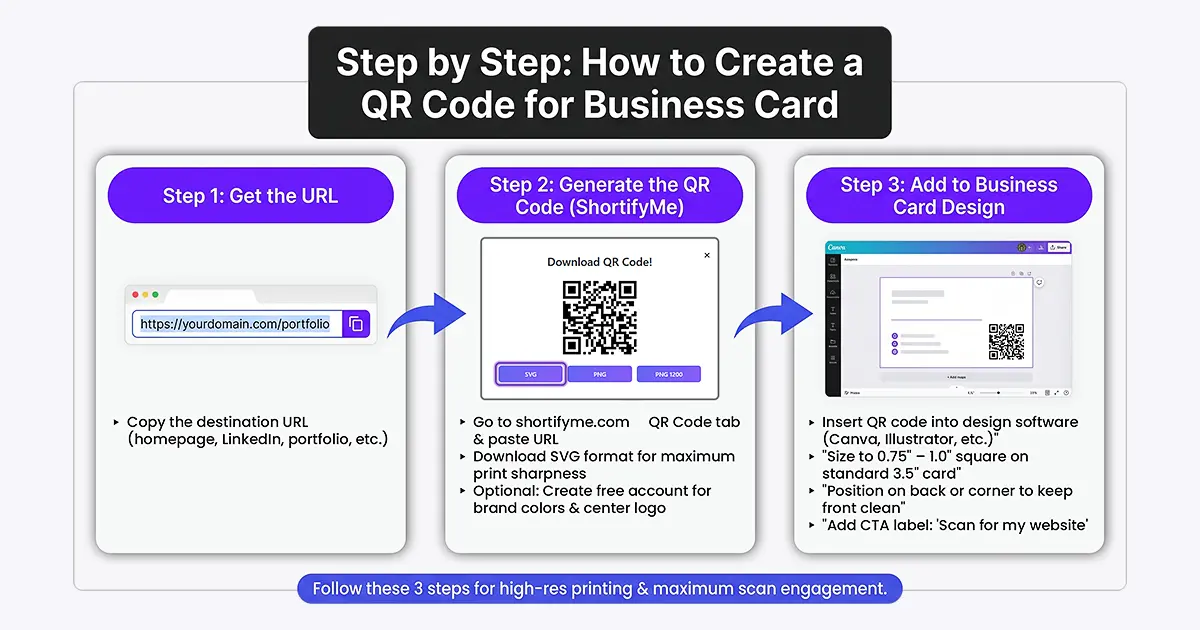
Step 1. Get the URL
Copy the URL of whatever you want the QR code to open. If it is your website, use your homepage URL. If it is your LinkedIn profile, copy the URL from your profile page.
Step 2. Generate the QR Code
- Go to shortifyme.com and use the QR Code tab on the shortener tool. Paste your URL and generate.
- For a business card QR code, download the SVG format. SVG stays sharp at any size, which matters because business card printing is high resolution.
- For a customized QR code (your brand colors, your logo in the center), create a free ShortifyMe account first. The customization options are richer in the dashboard than in the guest tool.
Step 3. Add the QR Code to Your Business Card Design
- Open your business card design in whatever tool you use (Canva, Adobe Illustrator, Vistaprint’s designer, etc.). Insert the QR code image.
- Size it appropriately. On a standard 3.5-inch business card, a QR code around 0.75 to 1 inch square works well. Big enough to scan easily, small enough not to dominate the card design.
- Position it thoughtfully. A common placement is the back of the card, centered or in one corner, so the front stays clean for the traditional card information (name, title, contact info).
- Add a short label near the code. “Scan for my portfolio” or “Scan to book a call” tells the recipient what to expect and increases scans significantly.
Design Tips for a Business Card QR Code
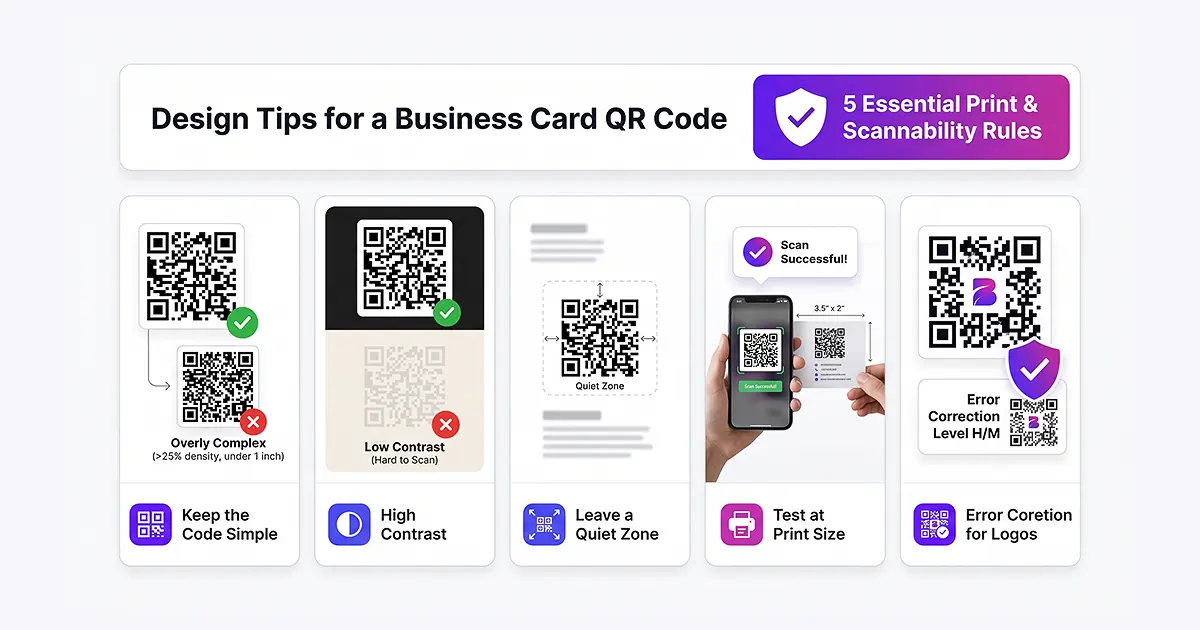
- Keep the code simple: Business cards are small; a fancy patterned code becomes hard to scan when reduced to under an inch.
- High contrast: Black on white is safest. If you use a color, make sure the code is dark and the background is light.
- Leave a quiet zone: The QR code standard requires a clear margin around the code. Do not butt the code against text or graphics.
- Test at print size: Print a proof of your card and scan the QR code with your phone. Do this before ordering hundreds of cards.
- Use a higher error correction level if you put a logo in the code: This lets the code still scan even with the logo covering part of it.
Why Use a Dynamic QR Code on a Business Card
- A business card QR code encoded with a short link (a dynamic QR code) can be repointed to a new destination without reprinting the cards. This matters more than you think.
- You update your website URL. The static code fails. The dynamic code still works because you just update the destination in your dashboard.
- You want to A/B test different landing pages for the same audience. The dynamic code lets you change destinations without ordering new cards.
- You change jobs or pivot your consulting practice. The dynamic code follows you; the printed cards keep working.
- On a ShortifyMe paid plan (starts at $7.99/month), the destination of every QR code can be edited. Free plans have QR codes that point at a fixed short link. If you want the repointing benefit, budget for the paid plan.
FAQs
Q: Do people actually scan business card QR codes?
A: Some do, some do not. The scan rate depends on the recipient and the context. Adding a clear label like “Scan for my portfolio” significantly increases scans over an unlabeled code. Even a small scan rate is better than the zero visits a printed URL usually gets.
Q: Does the QR code need to be on the front or the back of the card?
A: Either works. Front placement gets more attention but competes with your name and contact info for visual real estate. Back placement keeps the front clean and dedicates the back to the QR-scannable experience.
Q: Can I put multiple QR codes on one business card?
A: Technically yes but usually not recommended. It creates visual clutter and confuses the scanner about which code to try first. Pick your single most important destination.
Q: What happens if my website changes?
A: If you used a dynamic QR code (one that encodes a short link) on a paid ShortifyMe plan, you can change the destination without reprinting cards. If you used a static QR code, you would need to reprint or accept that the code links to an outdated URL.