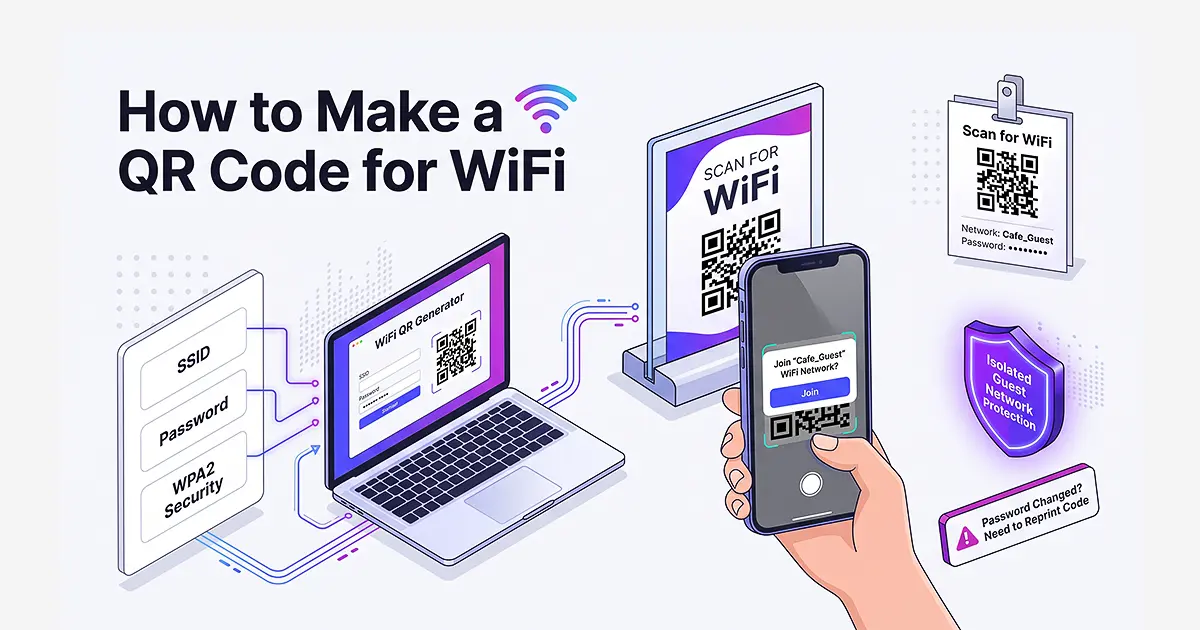
A WiFi QR code connects guests to your wireless network with a single scan. No typing the network name, no asking for the password, no dealing with autocorrect on a phone keyboard. Perfect for cafes, offices, waiting rooms, Airbnb rentals, home guests, or anywhere people want to get online quickly. This guide covers how to make one, where to place it, and one important detail about how WiFi QR codes actually work.
How WiFi QR Codes Work (Read This First)
A WiFi QR code is different from a regular website QR code. Instead of opening a URL, it tells the scanning phone the WiFi network name (SSID), the password, and the security type (usually WPA2). When scanned, the phone offers to join that network directly.
Because the WiFi credentials are encoded in the QR code itself, changing your WiFi password means you need to generate a new QR code and reprint any materials that carry the old one. A static QR code cannot be updated remotely the way a website QR code can. Plan accordingly.
Step by Step
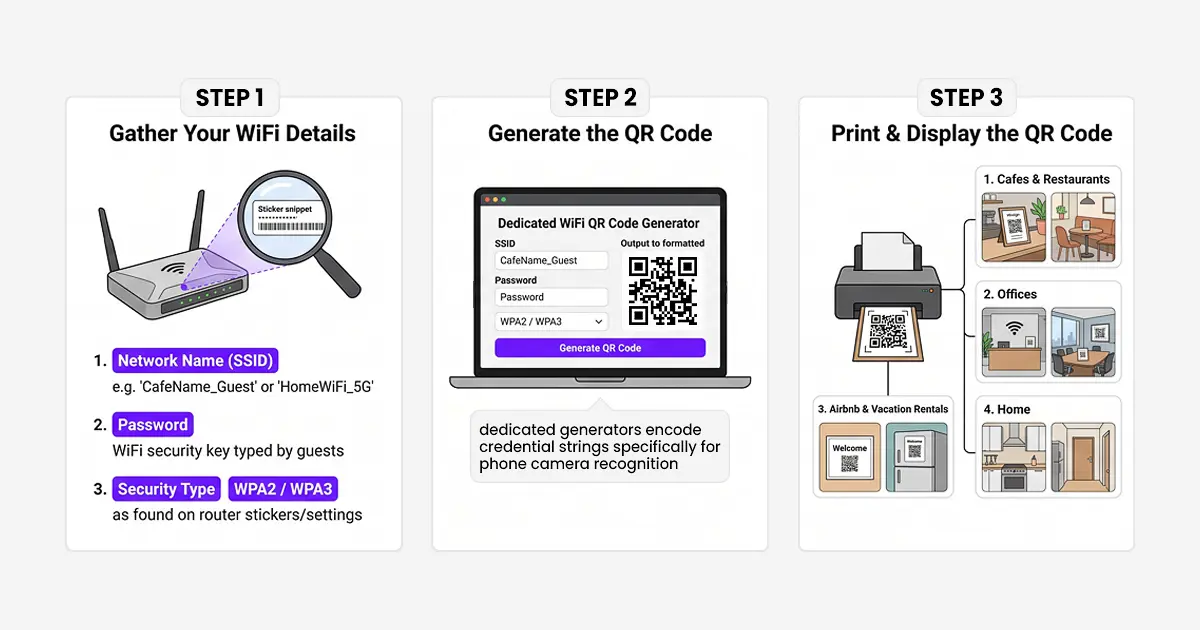
Step 1. Gather Your WiFi Details
You need three things:
- Network name (SSID). The name your network broadcasts, like “CafeName_Guest” or “HomeWiFi_5G.”
- The actual WiFi password guests would normally type.
- Security type. Almost always WPA2, sometimes WPA3 for newer routers. Check your router settings or the sticker on the back of the router if unsure.
Step 2. Generate the QR Code
A standard URL shortener like ShortifyMe generates QR codes that open URLs. For a WiFi credential QR code specifically, you would use a dedicated WiFi QR code generator, since the QR code needs to encode the network credentials in a specific format that phone camera apps recognize.
A search for “WiFi QR code generator” turns up several free tools that let you enter your network name, password, and security type, and download the resulting QR code.
An alternative approach that works with a URL shortener: create a page on your website with your WiFi credentials, then use a URL QR code that opens that page. This is less elegant (guests still have to type the password) but works if you want to update the WiFi password remotely by updating the page. Not recommended for most cases.
Step 3. Print and Display the QR Code
Download the QR code and print it. Common placements:
- Cafes and restaurants: On the counter, on tables, or on a small sign near the seating area.
- Offices: At reception, in conference rooms, and near the guest waiting area.
- Airbnb and vacation rentals: On a welcome card, on the fridge, or in the guest guide. Also include the credentials as text as a backup.
- Home: On a small frame in the kitchen or entryway where guests will notice it when they arrive.
Add a Clear Instruction
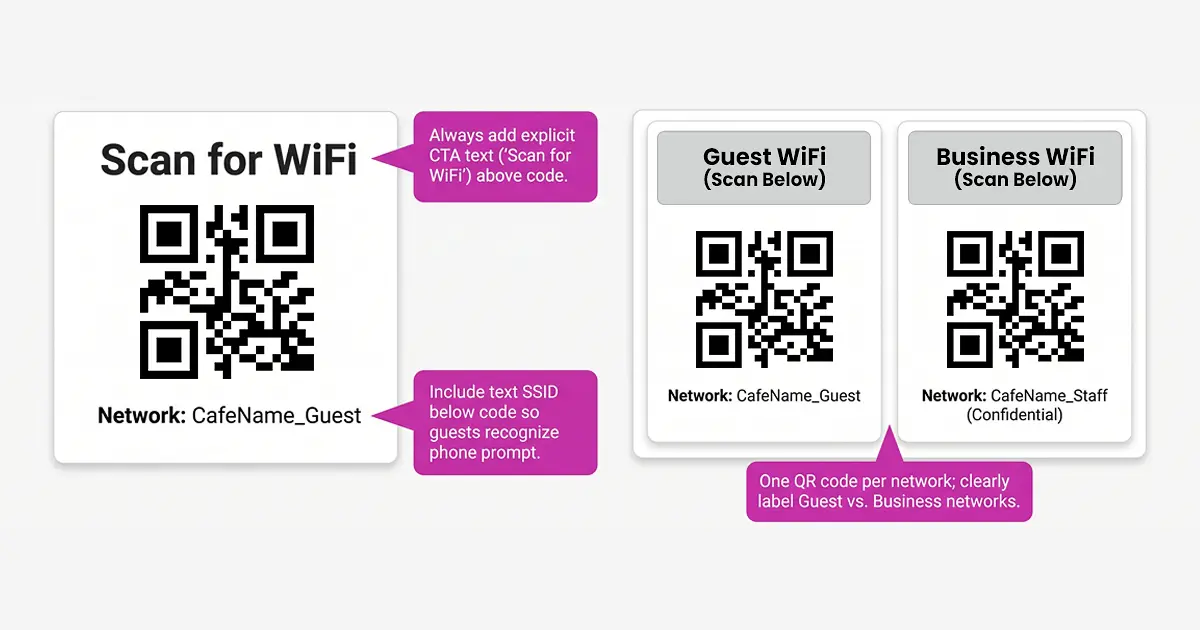
Include a label near the code. “Scan for WiFi” is the standard. Add the network name as text so guests can identify which network the code connects to when their phone shows the connection prompt.
If you have both a guest WiFi and a main WiFi, label them clearly. A single QR code should map to a single network. Two QR codes on the same sign, clearly labeled (“Guest WiFi” and “Business WiFi”), works if you need to offer both.
Design Tips for a WiFi QR Code
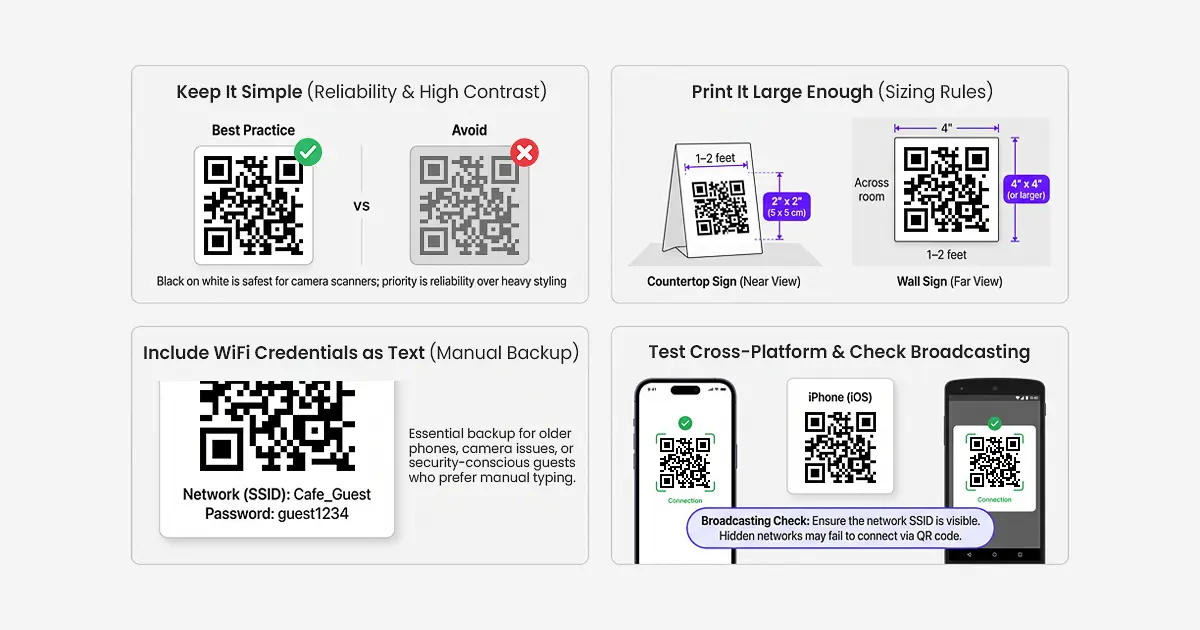
- Keep it simple: WiFi QR codes usually do not need brand customization; they need to work reliably. Black on white is the safest choice.
- Print it large enough: On a countertop sign viewed from a couple of feet away, at least 2 inches square. On a wall sign viewed from further, larger.
- Include the WiFi network name as text: Some guests will not scan (older users, security-conscious users). Give them the network name and password as backup so they can connect manually.
- Test it: Scan the code with an iPhone and an Android phone. Confirm both can connect to the network from the code. Some phones require the network to be broadcasting; hidden networks may not connect properly from a QR code.
Security Considerations
A WiFi QR code contains your actual WiFi password in a format anyone can decode with a QR scanner. If you print the QR code and place it somewhere public, anyone can scan it and get access to your network. That is the entire point, but be intentional about it.
For a business, this usually means using a dedicated guest WiFi network that is isolated from your business network. Anyone who scans the guest network’s QR code gets internet access but cannot access business systems. Most routers support setting up a separate guest network easily.
For a home, decide whether you want anyone with visual access to your QR code (say, a delivery driver looking in your window) to be able to connect to your network. If not, keep the QR code out of view from the outside.
FAQs
Q: Do guests need an app to scan a WiFi QR code?
A: No. Modern iPhones and Android phones scan WiFi QR codes directly through the camera app. The phone offers to join the network without any app.
Q: Does the QR code work if I change my WiFi password?
A: No. The password is encoded in the QR code. Change the password, and the code stops working. You would need to generate a new QR code with the new password and reprint any materials.
Q: Can I use a URL shortener to make a WiFi QR code?
A: URL shorteners generate QR codes for web URLs, not WiFi credentials. For WiFi specifically, use a dedicated WiFi QR code generator that supports the WiFi credential format.
Q: Will a WiFi QR code work with WPA3 or open networks?
A: Most WiFi QR code generators support WPA, WPA2, WPA3, and open (no password) networks. Just select the correct security type when generating.